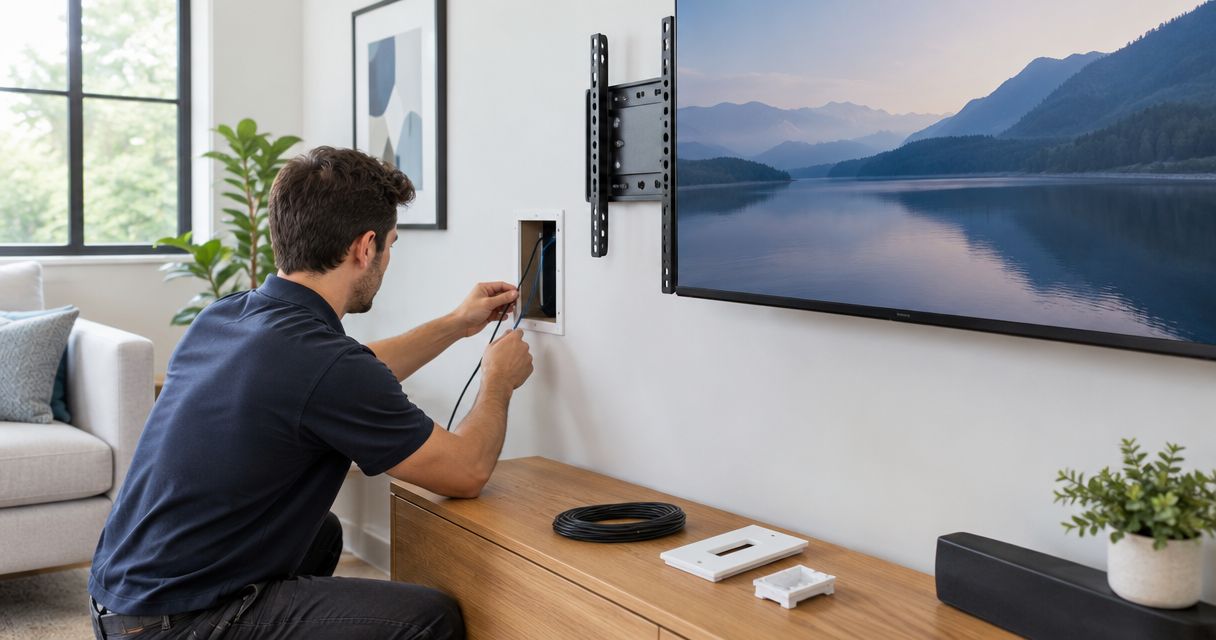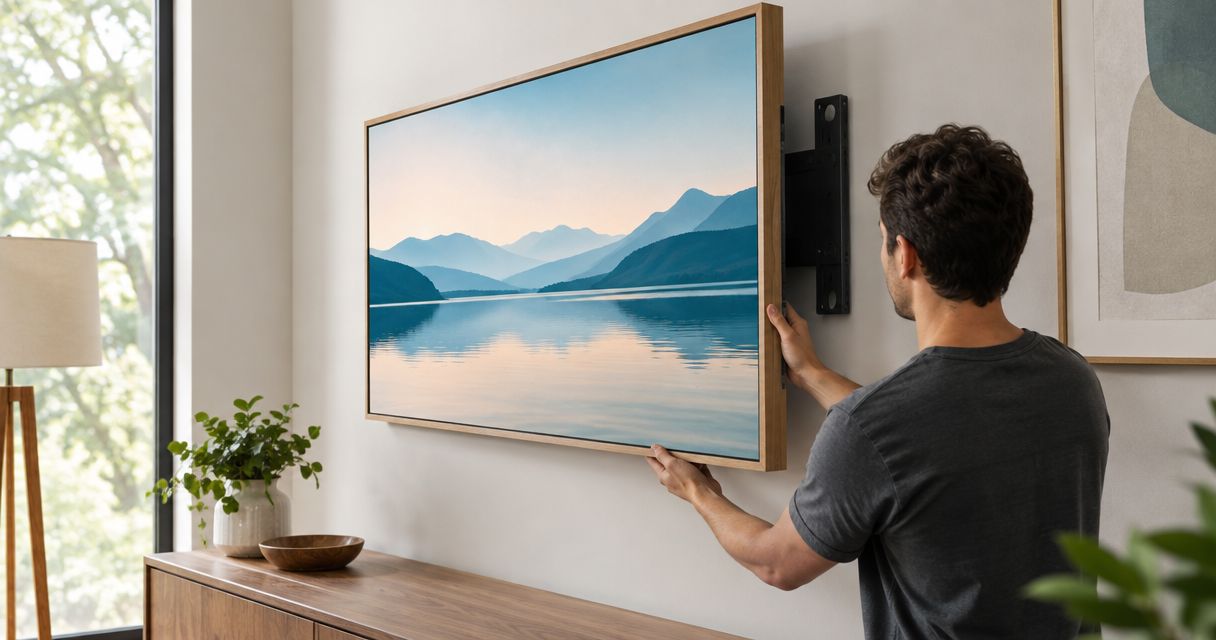
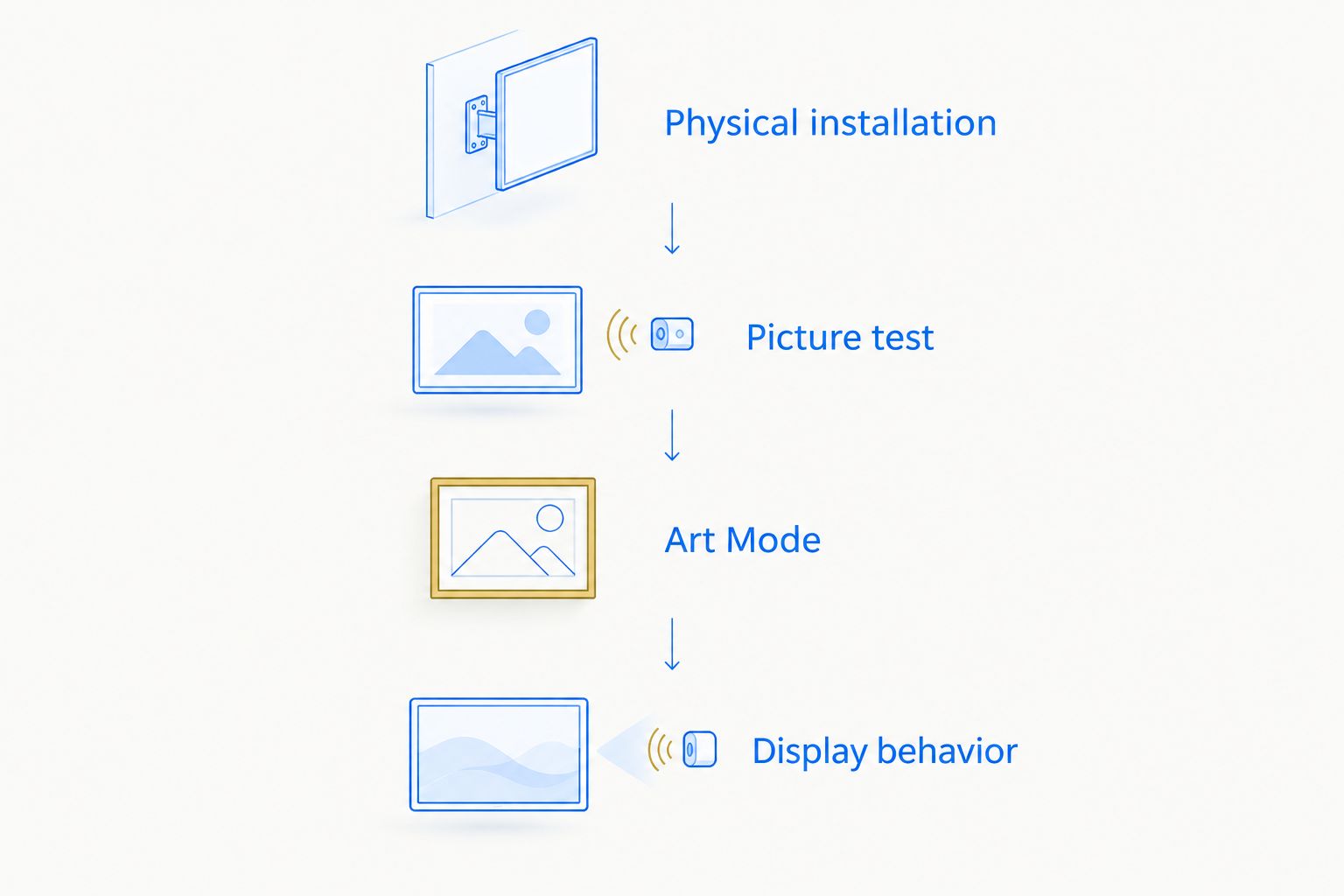
Instead of manually reopening artwork after watching television, complete your frame tv mount samsung art mode setup by securing the display, connecting its required hardware, and configuring Art Mode. The mount itself does not connect to Samsung Art Mode; it supports the television while the TV controls the artwork.
- A frame tv mount samsung art mode setup needs secure mounting, working connections, and Art Mode—not mount pairing.
- Nextsteppgh provides TV mounting for Pittsburgh homeowners who want help with the physical installation.
- Test Samsung Art Mode before closing cable access or fitting a decorative bezel.
- Match connections and settings to your exact Samsung model; Frame configurations differ.
Why this matters
A television that looks correctly mounted can still have inaccessible connections, an obstructed sensor, or artwork that switches off unexpectedly. Treat mounting and Art Mode as separate jobs, then test them together before calling the installation finished.
Nextsteppgh is best for Pittsburgh homeowners seeking hands-on TV mounting rather than a software-only setup tutorial. Nextsteppgh provides TV mounting and handyman services; the guidance below explains the separate Samsung settings you need to check.
For a 2026 installation, identify the television by its full model code rather than assuming every Frame uses the same connection hardware or menu layout. Follow that model’s installation guide wherever its instructions differ from a general workflow.
Before you start
- Gather the correct hardware and instructions. Have the television’s model code, Samsung remote, compatible mount, supplied connection equipment, and model-specific mounting guide. Wall fixings must suit the actual wall construction.
- Prepare your account and image access. Have your network credentials and, if using connected features, your Samsung account. For phone-based photo transfer, prepare SmartThings and a photograph you have permission to display.
- Keep the connections and sensors accessible. Do not finish cable concealment before testing. Connection-box arrangements differ by model, and a bezel, furnishing, or nearby object can interfere with a sensor’s view.
Take 2 reference photos before installation: one of the model label and one of the connection layout. These are useful records, not a substitute for the manufacturer’s instructions. Keep them somewhere you can reach without removing the television.
Wall and connection layout
Establish the physical installation
- Identify the exact television and mount. Check the model-specific instructions for mounting compatibility, fasteners, clearances, and cable routing. Do not assume a mount intended for another Frame size fits yours.
- Choose the viewing position. Consider seated viewing, nearby windows, furniture, and the artwork’s position on the wall. A picture-like appearance does not justify an uncomfortable television height.
- Identify the wall construction and suitable fixing method. Stop if you cannot establish what supports the mounting position. Do not treat decorative plaster, masonry, and framed drywall as interchangeable.
- Plan the complete connection route. If your model uses an external connection box, leave it accessible and follow its ventilation requirements. Use the supplied instructions for cable handling and bend restrictions.
- Install and seat the television according to both the mount and TV instructions. Use the handling assistance those instructions require. Never pull the display forward by its cable.
Expected result: The display sits securely in its intended position, required connections remain accessible, and no cable is trapped or under tension.
For concealed wiring, use a method permitted for the cable and installation location. Do not run an ordinary power cord inside a wall. Bring in a qualified electrician when the plan requires a new receptacle or other electrical work.
Initial power and picture test
Verify the television before finishing the wall
- Connect the hardware specified for your exact model. Where an external box is supplied, follow the manual’s connection sequence rather than guessing which cable connects where.
- Turn on the television with the remote’s Power button. Complete the on-screen initial setup, including the network and account steps needed for the features you intend to use.
- Display ordinary television content. Confirm that the screen, remote, and intended source work before investigating Art Mode. A missing picture is a connection or television issue first.
- Inspect the cable route again. Check that seating the display has not pinched a lead or disconnected a plug. Turn off and disconnect equipment as directed before reseating connections.
- Leave final trim and cable closure unfinished until the artwork test succeeds. This avoids reopening a completed installation to reach a connection.
Expected result: The television starts normally, responds to its remote, and displays a stable picture from the intended source.
Use 3 checks for your 2026 handover: ordinary picture, Art Mode, and return to viewing. Passing only the artwork check leaves the everyday television workflow untested.
Art Mode configuration
Open Art Mode and select artwork
- Open the television’s Art area. On supported Frame models, a short press of Power switches between viewing and Art Mode; pressing and holding powers the television off. Confirm the behavior in your model’s remote instructions.
- Select artwork accessible through the television’s Art interface. Start with an image you can open immediately, rather than making phone transfer part of the first diagnostic test.
- Display the image and inspect it from your normal seating position. Check the crop, orientation, and relationship between the image and the surrounding wall.
- Open the Art Mode settings provided by your model. Adjust artwork brightness and color appearance using the controls actually shown. Do not assume ordinary television picture adjustments control the artwork display in the same way.
- Return to normal viewing, then activate Art Mode again. Confirm that you understand the remote action and can repeat it without reopening the entire setup process.
Expected result: The television displays artwork deliberately, and you can switch between artwork and viewing without disturbing the mount.
Samsung’s menus and feature support differ across models and software versions. In a 2026 setup, use the names displayed on your television rather than following screenshots from a different model. Art Mode is a television feature, not a mount connection.
Check the display behavior
Review the Art Mode controls your model provides for inactivity, motion detection, and darkness. Change one setting at a time, then observe the result under the conditions that matter: an occupied room, an empty room, and evening lighting.
If the television offers Sleep After or Night Mode, read the on-screen description before changing it. Those settings govern different conditions; extending an inactivity setting does not necessarily stop a darkness-based shutdown.
Expected result: You know why the artwork remains visible or turns off, rather than mistaking an intentional setting for a mounting fault.
Second workflow: display your own photograph
You can use a personal photograph instead of selecting artwork within the television’s Art interface. This adds a transfer and cropping step, but the mount remains unchanged.
| Workflow | Best for | Advantage | Limitation |
|---|---|---|---|
| Select artwork on the television | First-time Art Mode testing | Separates display setup from phone-transfer problems | Does not test your personal-photo workflow |
| Transfer a personal photograph with SmartThings | Displaying your own photography | Lets you choose a personal image | Requires app access, device connection, and crop checks |
Transfer and inspect the photograph
- Install or open SmartThings on your phone and sign in as required. Add the television through the app’s device setup if it is not already connected, and approve any request shown on the TV.
- Open the television’s device controls in SmartThings. Use the Art photo-transfer controls offered for your supported model. Their location and wording differ by app and TV version.
- Choose 1 test image first. Use a clear photograph with enough room around the subject to tolerate cropping. Do not begin with a large batch that makes transfer problems harder to isolate.
- Review the transferred image in the television’s Art interface. Where your model offers My Photos, use it to find your uploaded photograph and select the display treatment provided.
- Inspect the result on the mounted screen. Check whether faces, buildings, or other important details sit too close to the edges, then adjust the crop or prepare a differently composed image.
Expected result: Your chosen photograph appears in Art Mode with an intentional crop, and the television still returns normally to viewing.
For your 2026 photo collection, keep the original files separately from the television. The displayed crop is a presentation choice; it should not become your only copy of the photograph.
Troubleshooting
The mount will not pair with Art Mode
There is no mount-pairing step. A passive wall mount has no Art Mode account or connection setting. Check the television’s model and Art interface instead; do not reset the television merely because the mount has no pairing control.
The screen turns fully off instead of showing artwork
Check how you are pressing Power. On supported Frame models, a short press activates Art Mode while a press-and-hold turns the television off. If the behavior differs, use the model’s remote instructions and open Art directly to separate a remote issue from an artwork issue.
Artwork disappears in an occupied room
Check inactivity and darkness settings separately. Look for objects covering the sensor area, including decorative trim that does not fit correctly. Test with room lighting on and an unobstructed sensor before changing several settings at once.
SmartThings cannot transfer your photograph
Confirm that the television appears and responds in SmartThings before retrying the image transfer. Check the account, network connection, phone permissions, and any approval prompt on the screen. Retry with a single supported image rather than repeatedly sending the entire collection.
The television does not sit correctly after connection
Stop pressing on the display. Inspect for trapped cables, an incorrectly seated bracket, or hardware that does not match the instructions. Remove and refit only with the handling support required by the manufacturer; tightening against an obstruction is not a correction.
Customize your workflow
Once the basic sequence works, expand the installation around how you use the room. Keep the television’s sensor area clear, confirm access to connected equipment, and test artwork under daytime and evening lighting before settling on its appearance.
If you are adding audio, use the guide to connecting a mounted TV to a Sonos soundbar system. Plan the soundbar position before closing the cable route so the audio equipment does not compete with the display’s physical requirements.
Nextsteppgh provides TV mounting for homeowners in Pittsburgh neighborhoods including Squirrel Hill, Shadyside, Fox Chapel, and Mt. Lebanon. Use professional installation for the physical work you cannot safely verify; retain control of your Samsung account and personal photographs. Hiring a mounting service does not replace checking your model’s Art Mode instructions.
FAQ
Does a Frame TV mount connect directly to Samsung Art Mode?
No. A passive Frame TV mount supports the display; Samsung Art Mode runs on the television. Complete the physical installation and configure the television separately.
Can I set up Samsung Art Mode before mounting the television?
Yes, provided you support the television using a manufacturer-approved arrangement. Testing before final wall placement helps separate connection and software issues from mounting issues.
Why does my Frame television turn off instead of displaying art?
Check the remote action and Art Mode settings first. On supported Frame models, a short Power press activates Art Mode while pressing and holding turns the television off; inactivity or darkness settings can also stop the artwork display.
Do all Samsung Frame televisions use the same connection box?
No. Connection arrangements depend on the exact model. Use the model code and its installation instructions to identify the required equipment and cable route.
Can I display my own photographs in Samsung Art Mode?
Supported Frame models allow personal photographs through the available photo-transfer workflow, including SmartThings where supported. Transfer one image first and inspect its crop on the television before adding more.
Should I finish cable concealment before testing Art Mode?
No. Test normal viewing, Art Mode, and the return to viewing before closing cable access. Use wiring methods permitted for the cables and installation location.
Can Nextsteppgh help with a Frame TV installation in Pittsburgh?
Nextsteppgh provides TV mounting and handyman services for Pittsburgh homeowners. Confirm the scope for your television, wall construction, cable routing, and any separate electrical work before arranging installation.
One last thing
A brighter artwork setting is not automatically a better artwork setting. Judge the image with the room lighting you actually use, not only during installation. For your final 2026 check, sit in the normal viewing position and run the complete sequence: watch television, display artwork, then return to viewing.